

Help
1. Operating Environment
The NDL Web Archiving Project (WARP) has been confirmed to work with the following browsers, if JavaScript has been enabled.
- Browser: The latest version of Google Chrome, Firefox, or Edge
You can also access it from smartphones.
2. Search
Search for archived web page text, etc.
You can search from the search box located on the top page and search results screen.
2-1. Keyword Search
Search for website/page title, URL, website publisher and text all together.
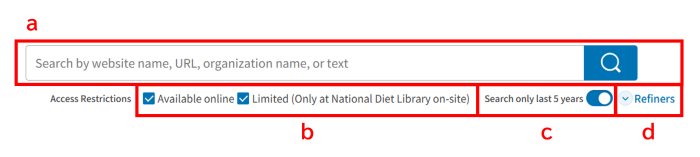
- Search Box
Enter keywords in the text box and click on the search button. A list of search results is displayed.
You can perform an AND search by entering a space (half-width or full-width space) between keywords.
For information on other available search operators, see Search Specification Details. - Access Restrictions
Search within access restrictions specified by the check boxes.
If you specify "Limited (Only at National Diet Library on-site)", you can search web pages (contents) available only within the facilities of the National Diet Library, Japan (Tokyo Main Library, Kansai-kan Library, International Library of Children's Literature). - Search only last 5 years
Search for web pages (contents) archived within the last 5 years (yearly).
Please note that if you toggle off "Search only last 5 years", the search may take some time. - Refiners
Clicking on the refiners button, search fields appear to refine search results.
2-2. Refiners
Clicking on the refiners button at the bottom right of the search box, the following search fields appear to refine search results.
If you enter keywords in some search fields, you can perform an AND search between the fields.
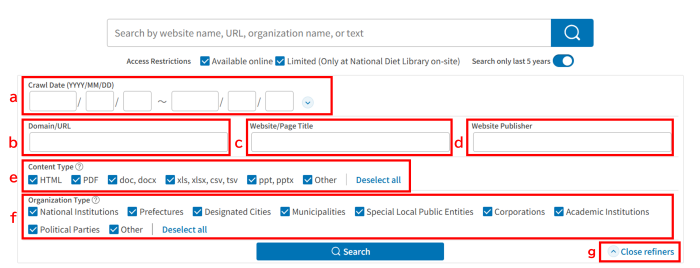
- Crawl Date
You can search by specifying the date the web pages (contents) were archived.
Enter the start date of the search range on the left and the end date on the right.
Enter the year using four digits. You can leave the month and day fields blank.
Click the expand button to expand the check boxes for each archived year.
If you want to specify an archived date prior to the last 5 years, toggle off "Search only last 5 years" in the upper right. - Domain/URL
You can search by the domain of the archived website or the URL of the web page (content). You can also search by entering only a part of the URL.
Please note that you cannot perform an AND search in the fields and use search operators. - Website/Page Title
You can search by the archived website title or the web page (content) title.
You can perform an AND search by entering a space (half-width or full-width space) between keywords in the field.
For information on other available search operators, see Search Specification Details. - Website Publisher
You can search by the website publisher described in the metadata.
You can perform an AND search by entering a space (half-width or full-width space) between keywords in the field.
For information on other available search operators, see Search Specification Details. - Content Type
You can search by specifying the content type contained in archived websites.
The table below shows the relationship between the content type and file format.
Please note that some file formats, such as Microsoft documents, require a separate application to view them.Content Type File Extension File Format HTML .htm, .html HTML file (the core file of web pages) PDF .pdf PDF file doc, docx .doc, .docx, .rtf Microsoft Word document
RTF file (Rich Text Format file)xls, xlsx, csv, tsv .xls, .xlsx, .csv, .tsv Microsoft Excel file
CSV file
TSV fileppt, pptx .ppt, .pptx Microsoft PowerPoint file Others .txt, .epub, etc. Text file
EPUB file (e-book format), etc. - Organization Type
You can search by specifying organization type of archived website publisher. - Close Refiners
Close an expanded search page. Closing an expanded search page will delete the content you entered in the search field.
2-3. Search Specifications Details
If you search by using the search box on the keyword search screen, or the search fields "Website/Page Title" or "Website Publisher", you can perform the following AND/OR/NOT/Phrase searches.
- AND Search
You can perform an AND search by entering a space (half-width or full-width) between keywords in the field. - OR Search
You can perform an OR search by entering "+" (half-width) before the keyword.
If your search includes multiple words, please enter a space (half-width or full-width) before the "+". - NOT Search
You can perform a NOT search by entering "-" (half-width) before the keyword.
If your search includes multiple words, please enter a space (half-width or full-width) before the "-". - Phrase Search
You can search for phrases that include spaces by adding the half-width character" before and after the phrase.
Example: When the phrase "library work" is entered, the search result includes titles such as "the library work" but excludes "work in library".
3. Search Results
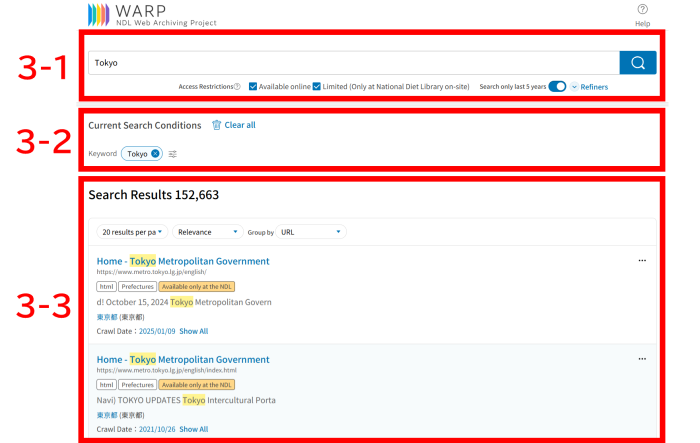
When you perform a search, the search results are listed as shown below.
3-1. Search Parameter Settings
You can search again or refine search results by entering or changing search conditions.
For details on how to search, see Search.
Clicking the refiners button will cause search fields to appear to refine search results.
If you search with the search fields open, "Content Type" and "Organization Type" display a breakdown of the number of hits. In addition, clicking the expand button for "Crawl Date" displays the number of hits for each year.
Please use this as a hint when refining search results.
3-2. Current Search Conditions
This area displays the currently specified search conditions.
It remains displayed at the top of the screen even when you scroll down.
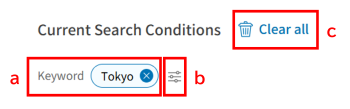
- Keyword
The keyword you entered in the search box is displayed. Clicking on the clear button next to a keyword will remove it from the search conditions and search. - All Search Conditions
Clicking on the icon expands all currently specified search conditions. Clicking on the clear button next to a search condition will remove it from the search conditions and search.
Clicking on the icon again closes the screen displaying the search conditions other than keywords. - Clear all
Clear all current search conditions and perform a search.
3-3. List of Search Results
This area displays a list of web pages (contents) that match the current search conditions.
The parts that match the keywords entered in the search box are highlighted.
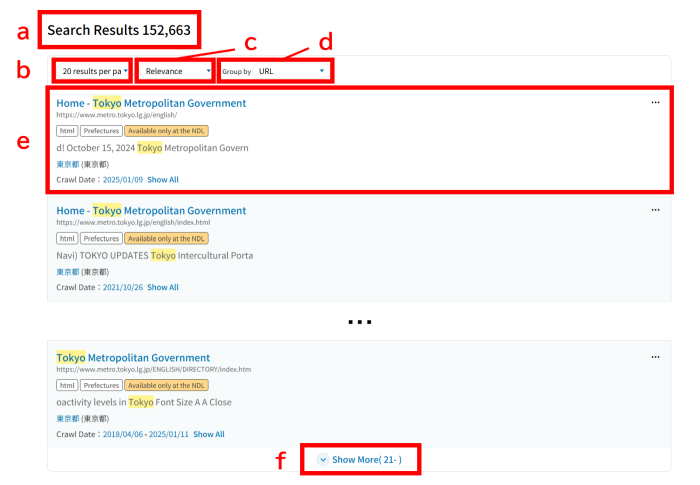
- Number of search results
Displays the number of web pages (contents) that match the search conditions. The maximum number of results displayed is 1,000. If the number exceeds 1,000, please refine the search results. Please note that the number of search results is the number when search results are not grouped by URL, etc. - Results per page
Specify 20 or 100 as the number of results displayed per page.
When you select the number of results displayed, the number of results displayed automatically changes. - Sort order
You can change the sort order. You can select from the following sort orders: by relevance, by crawl date (new first), by crawl date (old first), by URL.
When you select a different sort order from the pull-down menu, the order automatically changes. - Group search results
You can group search results by "URL", "Website", or "Publisher", or choose "Not Grouped".
When you select a different method to group search results from the pull-down menu, how the search results are grouped automatically changes. - Content Information

- e-1. Web page (content) title
The web page (content) title is displayed. Click on the title link to the content browsing screen. - e-2. Web page (content) URL
Displays the URL of the archived web page (content). - e-3. Content Type, Organization Type, Access Restrictions
Displays the file type of the content and the organization type of the website publisher.If the web page (content) is available only within the facilities of the National Diet Library, Japan (Tokyo Main Library, Kansai-kan Library, International Library of Children's Literature), Available only at the NDL is displayed. - e-4. Snippet
If you enter a keyword in the search box, a snippet of the text is displayed.
Snippets of "Available only at the NDL" content are displayed only when searching on a device within the facilities of the National Diet Library, Japan (Tokyo Main Library, Kansai-kan Library, International Library of Children's Literature). - e-5. Website Title / Publisher
The website title / publisher described in the metadata is displayed.
Click on the title link to go to the details page containing metadata and other information. - e-6. Crawl Date
The date the web pages (contents) were archived is displayed.
Click on the crawl date to go to the content browsing screen.
If the crawl date is displayed as "yyyy/mm/dd-yyyy/mm/dd", it means that the content was not updated at all during that crawl period. Click on it to go to the content browsing screen for the content with the later crawl date. - e-7. "Show All", etc.
This is displayed in the case you group search results by "URL", "Website", or "Publisher".- If you group search results by "URL"
"Show All" is displayed. Click it to show a list of crawl dates.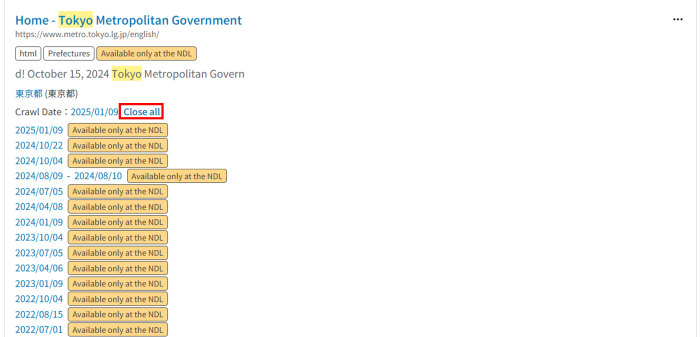 If the web page (content) is available only within the facilities of the National Diet Library, Japan (Tokyo Main Library, Kansai-kan Library, International Library of Children's Literature), Available only at the NDL is displayed.If the crawl date is displayed as "yyyy/mm/dd-yyyy/mm/dd", it means that the content was not updated at all during that crawl period. Click on it to go to the content browsing screen for the content with the later crawl date.
Click on "Close all" to close the list of crawl dates. - If you group search results by "Website"
"View all results for this website" is displayed. Click it to search only for the web pages (contents) on this website and to go to a search results screen that lists the search results by URL. - If you group search results by "Publisher"
"View all results for this website publisher" is displayed.
Click it to search only for the web pages (contents) this website publisher published and to go to a search results screen that lists the search results by URL.
- If you group search results by "URL"
- e-8. Search Exclusions
Click on the three dots to open the search exclusion specification screen.
Click on each link to go to a search results screen excluding it.
- e-1. Web page (content) title
- Show more
Click "Show More" to display more results. The maximum number of results displayed is 1,000. If the number exceeds 1,000, please refine the search results or change how search results are grouped.
4. Details Page
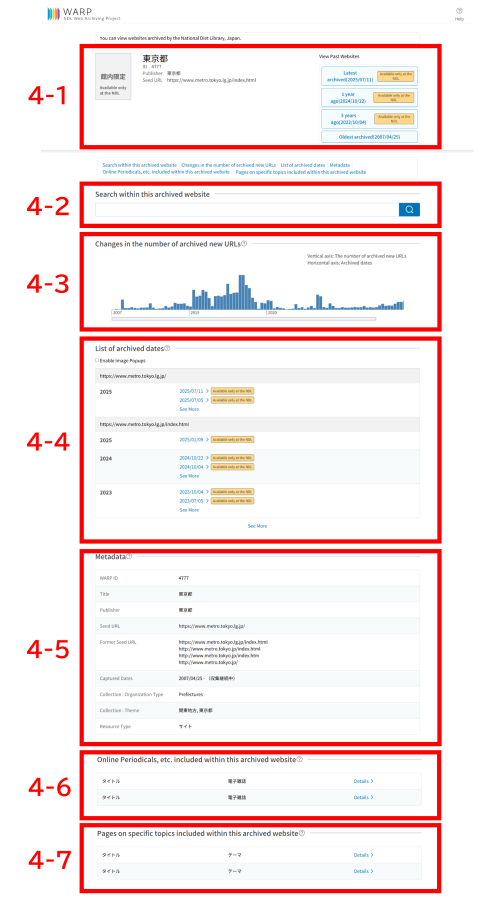
4-1. Basic Information
Displays basic information about the archived website.
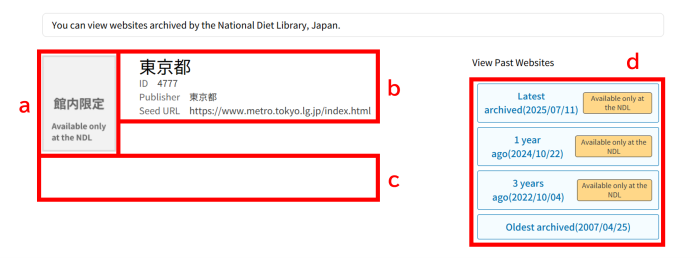
- Thumbnail
Displays an image of the archived website top page.If the website is available only within the facilities of the National Diet Library, Japan (Tokyo Main Library, Kansai-kan Library, International Library of Children's Literature), Available only at the NDL is displayed. - Title Area
Displays the title described in the metadata, WARP ID, the website publisher, and the seed URL from which the website was collected. - Related Title Area
This area is displayed if the "Subsequent Title", "Former Title", "Is part of", or "Related Title" is described in the metadata. - View Past Websites
Click each link to go to the content browsing screen.If the website is available only within the facilities of the National Diet Library, Japan (Tokyo Main Library, Kansai-kan Library, International Library of Children's Literature), Available only at the NDL is displayed."1 year ago" is a link to a website archived between 1 and 2 years ago that was archived closer to 1 year ago, and "3 years ago" is a link to a website archived between 3 and 4 years ago that was archived closer to 3 years ago. If there are no corresponding websites, they are not displayed.
If a website has only been archived once, only "Latest archived" is displayed.
4-2. Search Within This Archived Website
Enter keywords in the text box and click the search button to search only for the web pages (contents) on this website and go to a search results screen.
4-3. Changes in the Number of New Archived URLs
This is a bar graph showing the trend in the number of new archived URLs. The horizontal axis shows the archived dates, and the vertical axis shows the total number of new archived URLs and URLs whose content has changed.
The bars in the graph become longer when the content or structure of the website has been significantly updated.
Hovering the mouse cursor over a bar in the graph displays the archived date and the number of new archived URLs.
4-4. List of Archived Dates
This is a list of dates a website was archived on. Click on archived dates to go to the content browsing screen.
If the website is available only within the facilities of the National Diet Library, Japan (Tokyo Main Library, Kansai-kan Library, International Library of Children's Literature), Available only at the NDL is displayed.
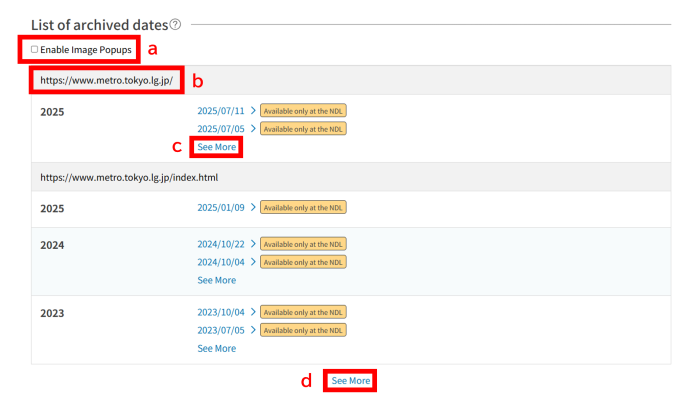
- Enable Image Popups
If you select the checkbox and hover your mouse cursor over the archived date link, a thumbnail of the archived website top page is displayed.
This item is not displayed on smartphones. - Seed URL
This is the URL from which the website was collected. - See More
Click on "See More" to display all archived dates for that year. - See More
Click on "See More" to display all archived years.
4-5. Metadata
Displays detailed metadata.
4-6. Online Periodicals, etc. Included Within This Archived Website
This is a list of online publications included within this archived website.

- Title
Displays the title described in the metadata. - Theme
Displays the theme described in the metadata. - Details
Click on the "Details" link to the go to the details page of each online publication.
The details page displays the title area (b) and related title area (c) of Basic Information (4-1), List of Archived Dates (4-4), and Metadata (4-5).
Please note that the details pages for online periodicals, etc. are a work in progress, so this item may not be displayed even if the website includes online periodicals, etc.
4-7. Pages on Specific Topics Included Within This Archived Website
This is a list of pages on specific topics such as events included within this archived website.

- Title
Displays the title described in the metadata. - Theme
Displays the theme described in the metadata. - Details
Click on the "Details" link to go to the details page of each page on specific topics.
The details page displays the title area (b) and related title area (c) of Basic Information (4-1), List of Archived Dates (4-4), and Metadata (4-5).
Please note that the details pages for pages on specific topics are a work in progress, so this item may not be displayed even if the website includes pages on specific topics.
5. Content Browsing Screen
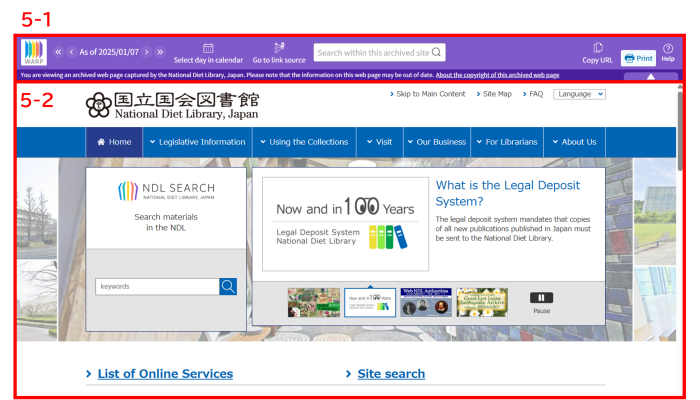
5-1. WARP Banner
A purple WARP banner is displayed at the top of the web page (content) to make it clear that the web page you are viewing has been archived and may be out of date.

- Archived date
Displays the date the web page (content) was archived.
,,, and are clickable if content at the same URL has been archived on a different day. Click on ,,, and to go to the content browsing screen for the oldest, previous, next, or latest archived date, respectively. - Select day in calendar
Click on "Select day in calendar" to display a calendar.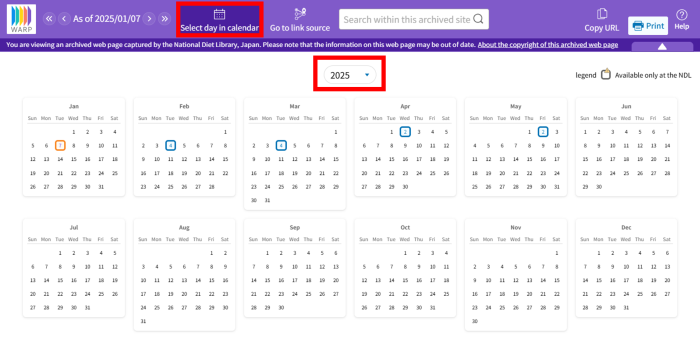
The dates framed on the calendar are the dates on which the web page (content) of the same URL was archived.
The orange frame indicates the date on which the content you are viewing was archived.
Click on a framed date to go to the content browsing screen of the content archived on that date.
You can display the calendar for another year by selecting "Year" from the pull-down menu. "Year" in which content at the same URL was not archived is not displayed in the pull-down menu.
Click on "Select day in calendar" again to close the calendar. - Go to link source
Click on "Go to link source" to go to the Content Browsing Screen of the web page (content) that links to the content you are viewing.
If the content you are viewing is linked from some other content, you will go to the Content Browsing Screen of the content that has the longest link text.
Example: If the page "News Article A" is linked from "List of News" (link text: specific news name) and "News Article B" (link text: here), clicking "Go to link source" will go to the Content Browsing Screen of "List of News," which has the longer link text.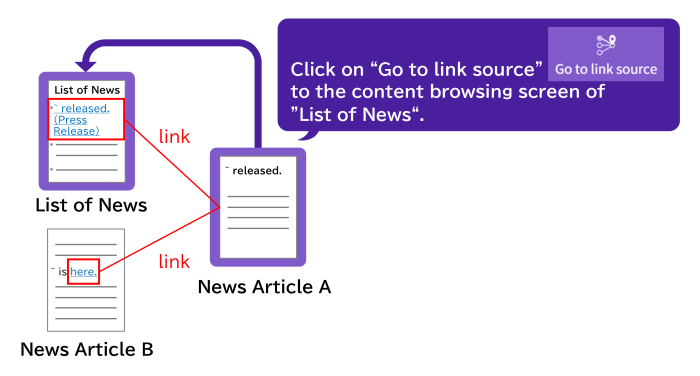
- Search within this archived site
Enter keywords in the text box and click the search button to search only for web pages (contents) on this website which belong to the content you are viewing, and go to a search results screen. - Download PDF
Click on "Download PDF" to download the PDF file you are viewing. This button is displayed when viewing a PDF file. - Copy URL
Click on "Copy URL" to copy the URL of the web page (content) you are viewing to your clipboard.When linking to the content archived in WARP, please use the URL obtained by "Copy URL".This item is not displayed on smartphones.
If you use a URL copied by right-clicking, etc. as a link, the banner will not be displayed and you cannot go to the content browsing screen of the content archived on a different day, and so on. - Area displaying access restrictions / whether printing is permitted at the NDL
Displays the access restrictions and whether printing of the web page (content) is permitted at the NDL.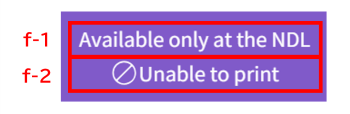
- f-1. Access Restrictions
If the web page (content) is available only within the facilities of the National Diet Library, Japan (Tokyo Main Library, Kansai-kan Library, International Library of Children's Literature), Available only at the NDL is displayed.If the content is available online, nothing is displayed.
- f-2. Whether printing is permitted at the NDL
Whether printing is permitted at the NDL is displayed as follows:- When viewing at the NDL:
If printing is permitted at the NDL, "Print" button is displayed.
If printing is not permitted at the NDL, "Unable to print" is displayed. - When viewing on the Internet:
If printing is permitted at the NDL, "Printable" is displayed.
If printing is not permitted at the NDL, "Unable to print" is displayed.
- When viewing at the NDL:
- f-1. Access Restrictions
- Close / Open the WARP banner
Click to close the WARP banner. Click again to open the WARP banner.
5-2. Content Display
Displays web pages (contents) archived in the past.
The NDL collects content by using an automated program, but due to technical reasons there are some files that cannot be collected by the automated program, or the layout may not display properly.
If you try to view a web page (content) that is available only within the facilities of the National Diet Library, Japan (Tokyo Main Library, Kansai-kan Library, International Library of Children's Literature) on the Internet, the following page is displayed.

5-3. URL
The web page (content) archived on WARP has a URL like this:

- Fixed part
This part is assigned to all content archived in WARP. - The part containing the archived date and time
The numeric part is the date and time the content was archived in WARP.
"20230704180734" indicates that the content was archived on July 4, 2023, at 6:07:34 PM.
The archived date and time part does not need to be entered exactly; as long as the format and number of digits (14 digits) are correct, the content with the closest archived date is displayed.
Example: If the archived date is "July 1, 2023," "November 1, 2023," or "January 1, 2024," Enter "https://warp.ndl.go.jp/en/web/20231225000000/https://www.ndl.go.jp/" to the content browsing screen displaying the content archived on "January 1, 2024."- Links to the latest archived content
Change the archived date and time part to "latest" to display the latest archived content at that time.
Example: https://warp.ndl.go.jp/en/web/latest/https://www.ndl.go.jp/
- Links to the latest archived content
- Original URL
This part is the URL the original content had at the time it was archived.
When linking to the content archived in WARP, please use the URL obtained from "Copy URL".
If you use a URL copied by right-clicking, etc. as a link, the banner is not displayed and you cannot go to the content browsing screen of the content archived on a different day, and so on.
The correct URL displaying the banner contains "web" in "b. The part containing the archived date and time".
If you are using a URL to link to content archived on WARP from before the renewal of the WARP (December 2025), the URL from before the renewal is permanently and automatically redirected to the current URL, so there is no need to change it.
5-4. Copyright
The copyright to archived web pages (contents) is retained by the original copyright owner. Care is needed when using archived contents to respect the copyright and limit your reuse of such content to the extent permitted by copyright law.
You are responsible for obtaining permission from the original copyright holder when you intend to reprint any images, documents, articles, data, or other content from archived websites.
6. Collections by Organization / Theme
6-1. Collections by Organization
Select an organization type to display a list of details pages for archived website publishers of that organization type.
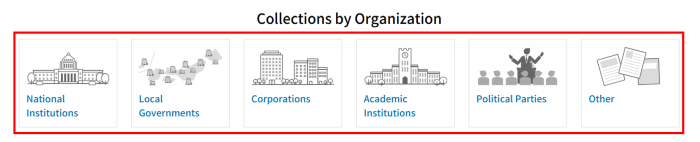
(1) National Institutions
Select an organization from the list of national institutions. A list of details pages is displayed.
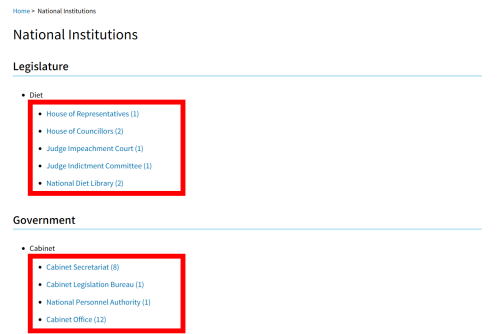
(2) Local Governments
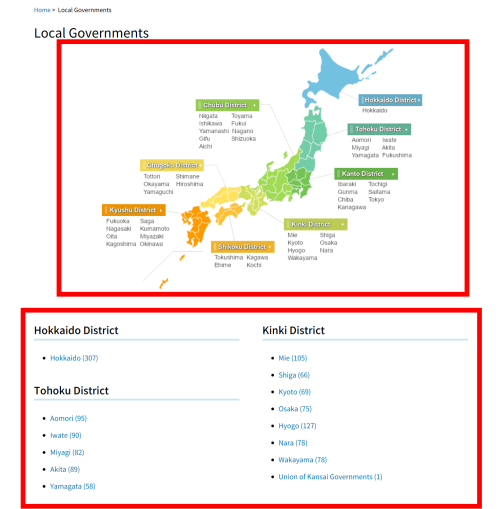
Select a prefecture name on the map or from the list. A list of details pages about prefectures, designated cities, municipalities, and other special local public entities associated with that prefecture is displayed.
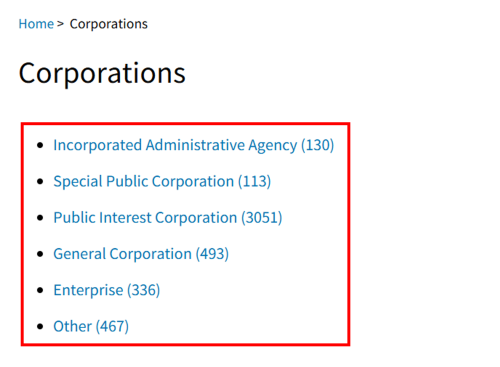
(3) Corporations
Select a type of corporation or organization. A list of details pages for corporations and organizations belonging to that type is displayed.
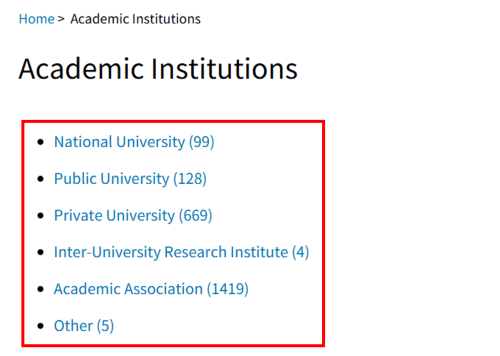
(4) Academic Institutions
Select a type of university or academic institution. A list of details pages for universities and academic institutions belonging to that type is displayed.
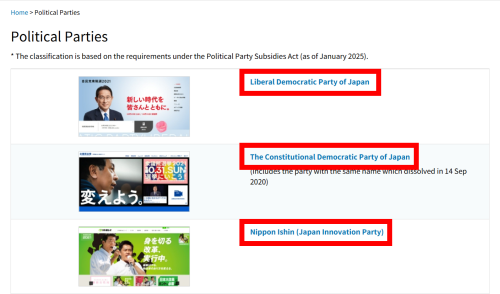
(5) Political Parties
Select a political party from the list of political parties. A details page for that party is displayed.
(6) Other
If the organizational type of the website publisher is anything other than "National Institutions," "Local Governments," "Corporations," "Academic Institutions," or "Political Parties," it is classified as "Other." Click "Other" to display a list of details pages.
6-2. Collections by Theme
Select each theme to display a list of details pages for each theme.

6-3. List of Details Pages
This is a list of details pages that are displayed when you select the "Collections by Organization" or "Collections by Theme" classification. The list is sorted in ascending order of WARP ID described in the metadata. The sort order cannot be changed.
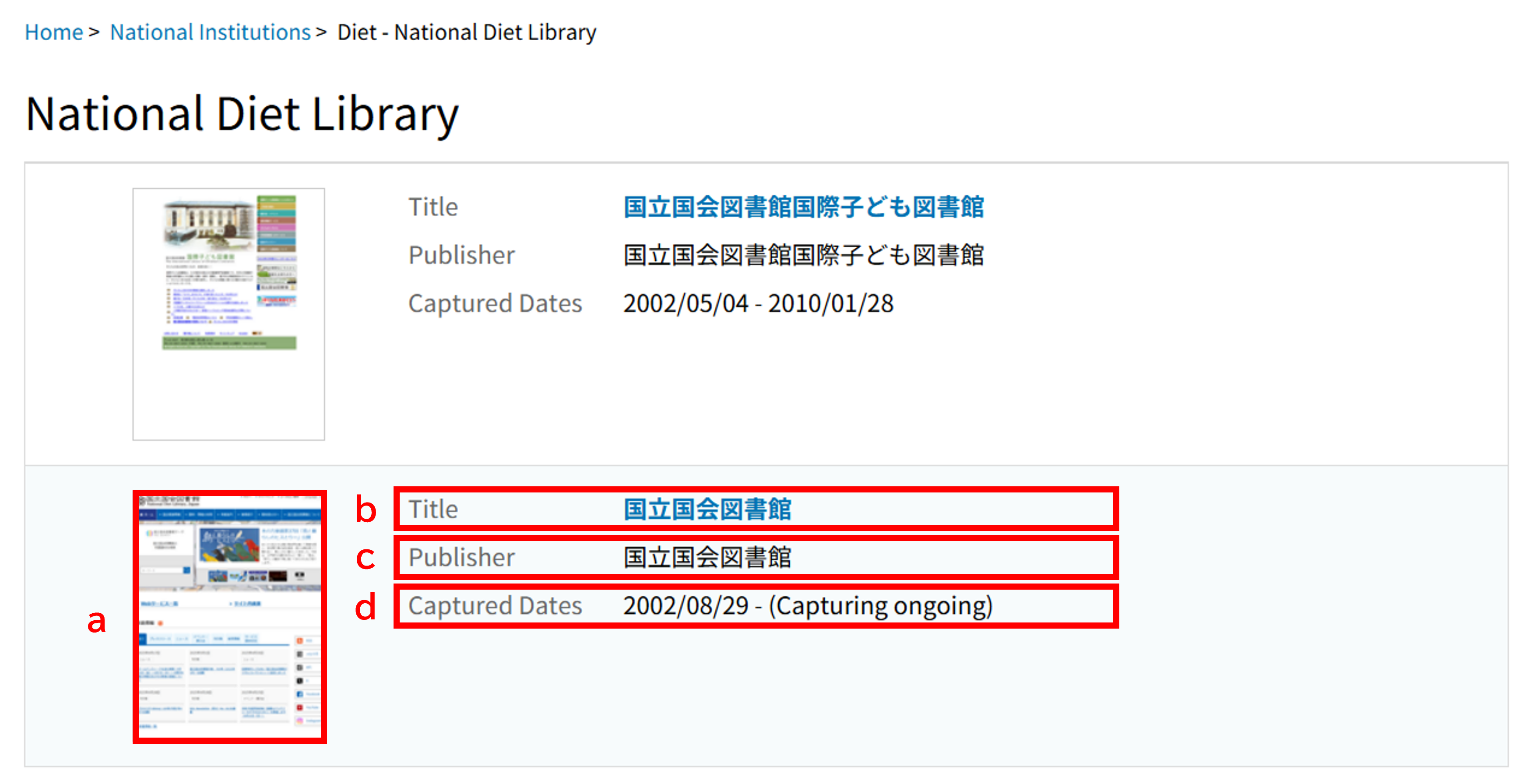
- Thumbnail
Displays an image of the archived website top page if one is registered.
If multiple images are registered, the latest image is displayed. - Title
Displays the website title described in the metadata. Click on a title link to go to a details page of the archived website. Displays the website title described in the metadata. Click on the title link to go to a details page of the archived website. - Publisher
Displays the website publisher described in the metadata. - Captured Dates
This is the period for which there are archives of the website. If collection is ongoing, "(Capturing ongoing)" is displayed at the end.
7. How to Use the WARP API
7-1. API Entry Points
WARP supports the protocol defined in RFC 7089 (HTTP Framework for Time-Based Access to Resource States -- Memento), which is an HTTP-based protocol for accessing web archives.
The API entry points for TimeMap and TimeGate in WARP are as follows:
| API | Entry Point |
|---|---|
| TimeMap | https://warp.ndl.go.jp/collections/timemap/ |
| TimeGate | https://warp.ndl.go.jp/collections/ |
TimeGate is a redirect type (Datetime Negotiation Pattern 2.1), so it returns HTTP status code 302 and redirects to the content.
7-2. API Usage Terms
There are no procedures required to use the API.
If you have any inquiries or feedback about the API, please send them to the address listed under Contact Us, making it clear that your inquiry is about the "WARP API".
7-3. Points to Note
(1) If you use the API on a continuous basis
We would appreciate your cooperation in helping us understand actual usage of the API.
If you use the API on a continuous basis, please tell us about your usage and your contact information using the address listed under Contact Us.
The information you provide will be used to improve our services by understanding the actual usage of the API.
(2) Large amounts of requests
When we receive a large amounts of requests from a particular IP address on a continuous basis, we might block access to the website and so on to prevent server overload.
(3) Copyright
The copyright to archived web pages (contents) is retained by the original copyright owner.
You are responsible for obtaining permission from the original copyright holder when you use archived contents.
(4) Disclaimer
Please see the disclaimer in the site policy.